What a Gift Buyer Should Know About the LeapFrog LeapPad Jr
Posted on 2026-10-12 by Miriam Adler
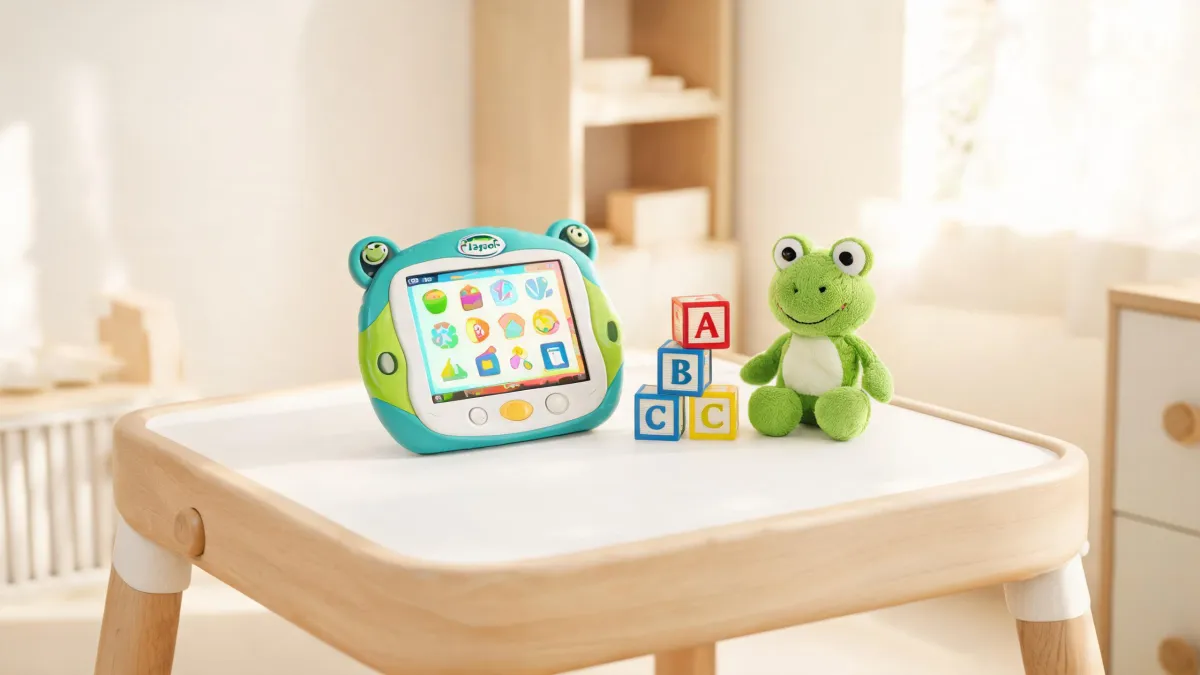
It is Saturday morning in the toy aisle and you are holding the LeapFrog LeapPad Jr box in one hand, phone in the other, searching for reviews of the hand-me-down tablet your sister offered. The box makes three promises: $75 of preloaded learning apps, a shock-absorbing frame and a shatter-safe screen. Two of the three are the least interesting things about the device, and the third is the one that decides the purchase.
The LeapPad Jr is a small kids' tablet with a rubberised bumper and a screen laminated so it will not break into sharp shards when a four-year-old stands on it. What you are paying for is the software layer underneath: age-gated content, a parent PIN and per-child profiles. The setup below runs in the order you will actually do it — first charge, day one, the first week, a month in, and by the end of the first year — so the decision gets made before you pay rather than after.
Which Ages the LeapPad Jr Is Actually Built For
LeapFrog describes the LeapPad Jr as a tablet designed just for young kids, which is the marketing version of a number you need before you spend anything. In practice the line sits at roughly three to six years old. A two-year-old is below the intended band: they will mostly slap the screen, chew the rubberised corners and ignore everything the software can do. A seven-year-old is above it and will exhaust the library inside a year. The gift only lands if the child's birthday falls in that window.
I have watched this go wrong twice. A friend bought one for a daughter who had just turned seven, and she worked through the science games in a fortnight before going back to her brother's hand-me-down iPad, where she could at least watch what she wanted. A four-year-old gets the full runway instead: the reading and maths levels reopen as skills move, and the same device is still appropriate twelve months later. If the child turns six this month, budget on about a year of real use before they start asking for something bigger.
The obvious alternative is a hand-me-down tablet in a cheap case, and on the drop test it does the same job for less money. A ten-inch tablet in a twenty-five dollar foam case survives a toddler standing on it about as well as the LeapPad Jr's shock-absorbing frame survives a fall off the sofa. Where the hand-me-down cannot compete is the age gating, which is software you would otherwise assemble yourself from a device's screen-time tools and two or three paid apps. Buy this one for the software ceiling, not the bumper.
What the $75 of Preloaded Content Really Covers
The $75 figure is LeapFrog's own valuation of what is already loaded, not a credit you can spend in the store, so treat it as a shopping list rather than a discount. The preloaded set covers core skills in mathematics, reading and science, plus music, puzzles, logic and creativity.
Priced against the open market, that is a fair number. A year of a subscription reading programme such as ABCmouse runs about sixty to eighty dollars, a maths app costs a similar amount per year, and a bundle of puzzle and music apps adds another twenty or so, all of them wanting a card on file and renewing whether your child uses them or not. The LeapPad Jr hands over a working library on the first charge with nothing to download and no account to create.
The catch is refresh. Preloaded content is fixed, and new titles arrive only if you buy the cartridges or downloads LeapFrog sells separately. Spend five minutes on the first charge opening each app and deciding which three suit the child you are buying for, because there is no second wave of new content coming for free. The games are also ad-free, and that matters more than the price tag: nothing interrupts a level to sell anything, which is rare on a device aimed at this age.
Setting the Parental Password on Day One
The parent lock is the first thing you set, before the child ever touches the tablet, and the order matters. Charge the device until it boots, then go into parent settings and create a four-digit PIN. That password gates every setting and every piece of content a child could damage, and it is the single control that decides whether the rest of this works.
Once the PIN exists, connect to wi-fi and build the first child profile. Doing it in that sequence means the profile is created inside a locked environment; doing it the other way round leaves a window where a curious four-year-old can reach settings. Skipping the PIN costs you an evening: the four-year-old I set one up alongside deleted two preloaded apps and pushed the volume to maximum within ten minutes on an unlocked unit, and restoring the content meant a factory reset.
This is also the reason to configure the tablet yourself instead of leaving it sealed for the parents. A gift that arrives with the PIN set, wi-fi on, one profile ready and the brightness turned down gets used the same day. A gift that arrives as a box waits until a tired parent has an hour free on a weeknight, which for a first tablet often means it waits weeks.
Matching Each Child to Their Play Level
The controls let you add several children to one tablet and manage each child's play experience to suit their age. The improvement to make in the first week is a separate profile per child rather than one shared login.
Profiles are not cosmetic. A three-year-old and a five-year-old need different difficulty, and the same maths game serves counting to five for one child and simple addition for the other. Give each child their own named tile and the age setting stays correct for both. Share one profile and the level is permanently pitched at one child, so the younger one sits through material they cannot read while the older one stops opening the app out of boredom.
In a house with a three- and a five-year-old, two profiles are the difference between the tablet being used by both and being abandoned by one inside the first week. Name each profile with the child's own name and let them pick the avatar; the child taps their own tile instead of borrowing a sibling's settings. If this is a gift to a family with two children in the age band, add both profiles before you wrap it, so nobody has to argue over whose turn the tablet is on.
Keeping Play Ad-Free a Month In
Because the preloaded games carry no advertising, the risk after a month of daily use is not an interstitial interrupting play. An interstitial is the full-screen advert that pops up between levels in a free children's app, and it is how a four-year-old learns to tap a banner. The real risk here is boredom: a fixed library gets stale, and a child who has seen every puzzle title will simply stop opening the tablet.
The fix costs nothing. Rotate the library: pull the maths and reading apps to the front screen, move the puzzles and music out of sight for a week or two, then swap them back. On a tablet funded by ads, the titles you hide are still being monetised by someone; here the only thing you are managing is attention. A child who has not seen the logic games for ten days meets them as new.
By the end of the first month you should be able to name the three or four titles your child opens without being asked, and those are the ones worth keeping where they can reach them. Everything else can move into a folder, because nothing on this tablet earns money from a tap and there is no cost to putting a title away.
By the End of the First Year, What's Left
Three months later the routine is settled: the child has favourite titles, the PIN has held, and nobody has had to reset anything. The interesting moment arrives near the end of the first year, when a child who started at three is turning four and the age band that made all of this work starts to press.
A general tablet wins on range the moment a child passes six, because they can install what their friends have and grow into it. What it cannot do is hold the safety ceiling: an open app store is exactly what the LeapPad Jr's design rules out, and by the time a child wants one they have outgrown the gating that made this device worth buying. You are not choosing a worse tablet, only a bounded one.
So the tradeoff is plain. Buy the LeapPad Jr and you get a first screen that is safe without supervision, because the gating is built in rather than bolted on; you give up a device that grows with the child, because this one is designed to be outgrown in about two years. If that matches the gift, buy it and set the PIN before you wrap it. If you need one tablet to serve the whole childhood, this is not it, and you should budget for the upgrade you will be making in a couple of years.

Miriam Adler
Miriam Adler is an educational and STEM toy analyst specializing in busy boards, Montessori-style manipulatives, learning towers, sound books, reading pens, pretend-play sets, and early learning toys. She applies ASTM F963 and IEC 62115 methods while evaluating small-part hazards, accessible edges, switch durability, sound output, battery access, pull force, and age-appropriate task complexity. Her work helps parents, retailers, and product teams choose learning products that align developmental goals, supervision needs, interaction design, and the intended age stage.