LeapFrog Touch-Screen WiFi Smart Baby Monitor: A Low-Friction Tool for Night Checks
Posted on 2026-08-20 by Miriam Adler
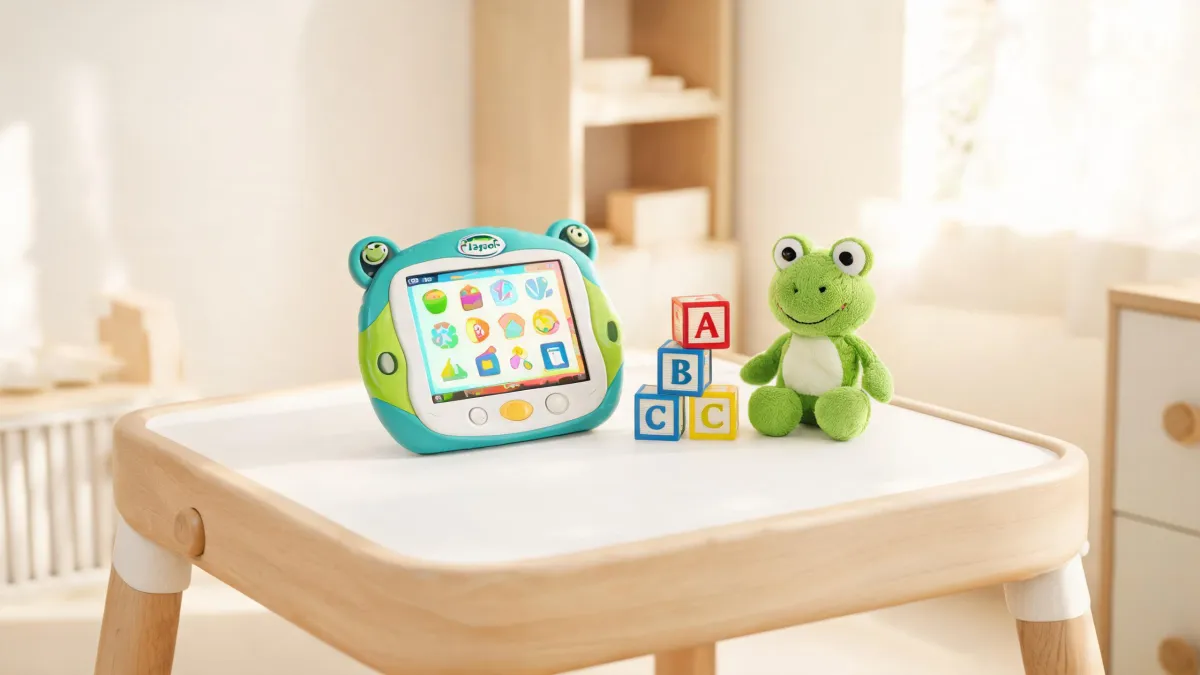
Here's the short version: a touch-screen WiFi smart baby monitor is worth buying only if it makes your nightly check faster, not because it livestreams to your phone. Most parents assume WiFi means 'watch from anywhere,' but in daily use, the real wins are a screen you can glance at and a connection that stays reliable across two walls. LeapFrog's version fits that job when your viewing habit is local and quick. The deciding factors aren't camera specs or app count—they're your room layout, router reach, and the brand's ability to back the product for years.
The Real Job of a Touch-Screen WiFi Smart Baby Monitor
What is a touch-screen WiFi smart baby monitor actually for? It's not for turning your nursery into a home-security dashboard, and it's not for livestreaming every cry to your phone. It's for answering one question at night: is the baby breathing? A dedicated screen earns its place on a coffee table when you can see the crib in under thirty seconds without unlocking a phone or fumbling with an app. The 'smart' part should reduce friction, not add it. If a monitor needs a multi-step app launch for every glance, it has failed its core job. Instead, think of it as a low-friction tool for quick night checks and peace of mind, whose true value depends on your room layout and viewing habits. Many people assume WiFi means you can watch from anywhere via your phone. But for daily use, local viewing speed and privacy matter more than remote access. That's the first clarification. A touch screen that is always on beats an app you have to open, because it removes the load of unlocking and navigating, and it keeps your phone free for other things.
LeapFrog's own product pages make a deliberate distinction: the baby-care category lists both 'Smart Baby Monitors' and 'Video Baby Monitors.' That categorization is a useful signal for you. It tells you the brand does not use 'smart' as a fancy word for any camera; it uses it for a specific tier that is supposed to reduce your effort. The mechanism is straightforward: a dedicated touch screen that is already glowing on the table, connected over WiFi, gives you a one-glance answer when you walk into the room. You're not reaching for a phone, not waiting for an app to spin up, and not getting distracted by notifications. For a parent who is not tech-savvy, this distinction is a relief: you can buy the simpler video tier if you want, but the smart tier exists precisely to let you see the baby quickly without learning a complicated app. The evidence changes how you should compare monitors: instead of counting pixels, compare how long it takes from entering the room to seeing your baby's chest rise. That's the metric that makes 'smart' meaningful, and it's the one LeapFrog's product structure seems designed to serve.
Does the touch screen cost you anything? Yes, it takes up counter space, but the trade-off is truly worth it. The same navigational evidence that lists smart monitors also places baby care right alongside LeapFrog's learning tablets and reading systems. That placement tells you that baby monitoring is a mature product line, not an afterthought. So the occasional parent who worries about a 'smart home' learning curve can see that the brand already speaks to families with non-technical needs. The clear question to answer is practical: at 10 PM, with the baby in the crib and you in the living room, do you want to unlock your phone or glance at a screen? Two walls of interference make WiFi flaky, but a dedicated monitor that prioritizes local connection is designed for that exact moment. The evidence reframes the purpose: this is not a streaming gadget; it's a calm, low-friction check.
Warranty and Privacy: The Specs That Outlast Pixels
When parents compare baby monitors, they usually start with pixel resolution, night vision, and zoom range. Those specifications are pretty easy to spread across a table, but they are not what keeps the monitor usable after the first month. The contrast that matters is between a device you can return and support when it fails, and one that leaves you stranded with a brick. A high-resolution feed is worthless if the parent unit stops charging, or if the video stream is routed through a privacy policy you can't understand. The more often you use this monitor at night, the more you care about the company behind it: warranty length, return policy, and whether an actual human is available when setup goes wrong. Pixels get your attention; support earns your trust.
One piece of evidence should move this from abstract to concrete: LeapFrog publishes a 'LeapFrog Baby Care Return Policy' and 'LeapFrog Baby Care Legal Policies' as separate items, alongside the standard United States/Canada Limited Hardware Warranty. That separation changes the support question from 'does this brand have any warranty?' to 'does this brand treat baby gear as a higher-stakes category?' The answer is yes. It means the company expects the monitor to be used daily for years, and it has built an after-sales framework that is distinct from its toy warranties. In practice, you are not reading a generic we-replace-it clause; you are reading a commitment aimed at a device that sits near your child's sleep space. That is the kind of evidence that should weigh as heavily as any spec sheet. When you compare brands, ask for this exact kind of documentation, not for a glossy spec sheet.
You might say a privacy policy is just boilerplate that every brand posts. The objection loses force when you look past the legal page to the support structure. LeapFrog's support section lists product FAQs, instruction manuals, and warranty information in one place, including a baby-care area. That means the privacy policy is not an empty promise; it is backed by a system designed to help you register the device, connect it, and troubleshoot when something goes wrong. A privacy policy without a support channel on the same site is a promise without a floor. With LeapFrog, the path from 'how do I connect this?' to a manual and FAQ is short, and that's the condition that makes the policy a real commitment rather than a checkmark.
Set Up a Smart Monitor in Three Steps
The most common failure with a smart monitor is not a dead battery; it's abandonment. Parents set the device up poorly, the WiFi drops behind a cabinet, and the touch screen ends up in a drawer by week two. The evidence that this failure is real is right on LeapFrog's support page: it lists separate PDF instruction manuals for a long list of products and runs a 'Popular FAQs' section that answers reset, charging, and connection questions. That tells you the manufacturer sees the same pattern; otherwise it wouldn't have built escape routes for it. The condition that triggers the failure is usually placement, not product quality. Put the monitor too far from the router, skip the first-time WiFi step, and you'll blame the camera for what is actually a positioning mistake. Knowing this beforehand lets you treat setup as the single main task, with the monitor as the tool.
Set up the monitor in three practical steps. First, decide where the monitor will sit: it needs to be close enough to the router that the signal doesn't have to cross multiple walls. A good starting rule is one wall maximum, because concrete and metal studs absorb WiFi far more than drywall does. Second, get the local view working before you open the companion app. Power on the camera, let the touch screen link, and wait until the image is stable for a full minute. If it drops, move the monitor before you configure anything else. Third, only after the local feed is rock-solid should you connect the phone app, and when you do, take two minutes to set privacy controls and install any firmware update. This sequence turns the most common source of frustration into a manageable checklist, and it does not require any technical skill. If you live in a home with thick walls, factor a WiFi extender into the setup cost.
Treating setup as a three-step process makes the headache disappear, and the same support evidence gives you a safety net. The evidence, too, frames the boundary: it documents what the company can help with, not what it can't. LeapFrog's manual library and FAQ pages show that most user problems are known and answerable—from factory resets to missing parts. That means if you follow the steps and still hit a wall, there is a specific PDF or FAQ entry waiting for you. The verdict in context: if your home's WiFi reaches the nursery and you are willing to spend twenty minutes on placement, the monitor will work as intended. If the router is in the basement and the crib is on the third floor, no monitor can fix that—you need a mesh network first. That is not a device failure; it's a physics failure, and the support pages won't change it.
The Verdict: When LeapFrog's Monitor Is and Isn't the Right Pick
Use two criteria to make the decision. First, count your nightly checks: if you find yourself unlocking a phone for every rustle, and then getting pulled into a notification, a touch-screen monitor with an always-on display is the better shape. Second, map your viewing habits: a dedicated screen works when you are mostly in one room near the monitor; a phone-app camera only wins if you genuinely need to check from another floor or outside the house. If your answer for 'when do I look?' is 'every time I hear a sound,' then the cheaper phone-based route is likely to fail you, because the friction of unlocking will make you skip checks you should make. If your answer is 'I only check twice a night from the couch,' then the touch screen is not adding much over a basic monitor, and you should spend your budget on privacy and support instead.
LeapFrog fits a specific parent: someone who wants a dedicated product that comes with a real support team. The site's navigation anchors place baby monitors in the same category tree as the brand's learning tablets and reading systems, so you can see the monitor is a core product, not a one-off gadget. The support pages reinforce the same depth: manuals, FAQs, and warranty information arranged by product category, with the same structure as the brand's other devices. Together, the evidence argues that LeapFrog expects this monitor to sit in your home for years, and that it has built the support to back it. But the boundary is just as clear: if you have already invested in a smart-home hub and want every camera only in one app, a standalone touch screen will feel like an extra island. In that case, a generic WiFi camera from a brand that takes privacy seriously is a better brand fit.
The final verdict is conditional, which is the only honest way to give one. If your definition of 'smart' is a monitor that lets you see your baby's chest rise within thirty seconds at night, LeapFrog's touch-screen WiFi model is a strong pick: the dedicated screen cuts friction, and the separate Baby Care return policy and legal pages show the company treats the device as serious infant gear. If your definition is a camera feed that follows you anywhere and integrates with your phone, then this is the wrong shape, and you should look elsewhere. The evidence that seals the decision does not appear on a spec sheet; it appears in the warranty and legal section, where a dedicated Baby Care policy exists. The return policy matters because it lets you test the monitor in your actual home, with your actual walls, for a few nights, and send it back if it fails the 10 PM test. That is the safety net a night-time device deserves. Choose it for the 10 PM glance, not for the remote feed—that is the difference between a useful tool and a wasted gadget.
At 10 PM, the monitor on your coffee table either answers the question quickly or it doesn't. That is the standard to bring to any smart monitor, and it is the one LeapFrog's touch-screen design is built for—provided your router and your walls cooperate. If your nightly checks feel like a two-second glance rather than a five-step app launch, the device has done its job.

Miriam Adler
Miriam Adler is an educational and STEM toy analyst specializing in busy boards, Montessori-style manipulatives, learning towers, sound books, reading pens, pretend-play sets, and early learning toys. She applies ASTM F963 and IEC 62115 methods while evaluating small-part hazards, accessible edges, switch durability, sound output, battery access, pull force, and age-appropriate task complexity. Her work helps parents, retailers, and product teams choose learning products that align developmental goals, supervision needs, interaction design, and the intended age stage.