LeapFrog Touchscreen WiFi Smart Baby Monitor: Worth It or a Waste?
Posted on 2026-08-25 by Miriam Adler
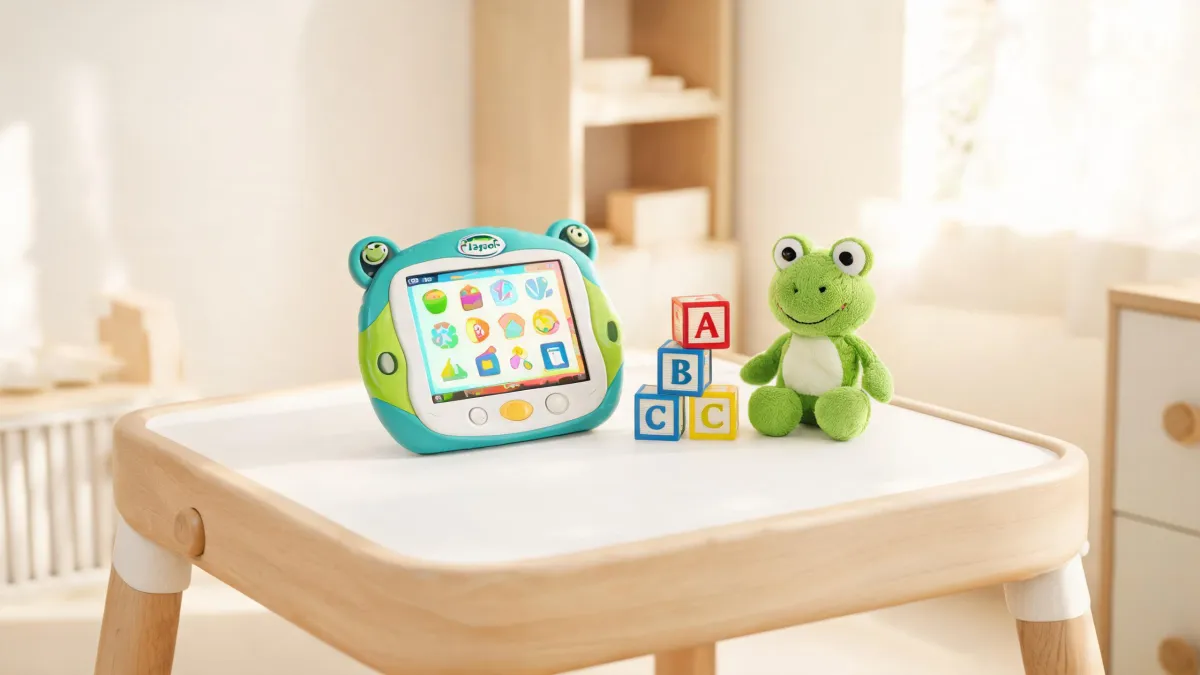
What if the most important feature of a baby monitor isn’t the camera but the connection? For most parents, the answer is yes: a touchscreen WiFi smart baby monitor like LeapFrog’s is worth buying—but only after you verify your home Wi-Fi and privacy setup. The touchscreen gives you a bedside panel you can tap without pulling out a phone; WiFi lets you check in from another room or while out. However, the convenience comes with two non-negotiables: a stable network and a secure configuration. If your router is in a far corner or your Wi-Fi often drops, the remote features become a liability. And if you don’t change the default password or keep the firmware updated, you’re exposing your baby’s room to strangers. So the purchase decision starts not with screen size, but with whether your home can support it safely.
Stop Listening, Start Looking: The Video Monitor Shift
Decades ago, the audio baby monitor was a breakthrough: you could hear your baby cry from another room, and that was it. No image, no breathing check, just sound. That limited information forced parents into a routine of anxious listening—is that a cough or a sigh?—and frequent trips to the nursery to confirm everything was fine. The traditional monitor solved one problem (you could hear), but created another: it replaced uncertainty with more of it. You heard a noise, couldn’t see what it was, and your imagination filled the gap with worst-case scenarios. Even with a second sensor or a belt clip, the experience was fundamentally audio-only. You had no way to know if your baby had kicked off a blanket, turned over, or simply falling back to sleep. The result was a pattern of interrupted nights and unnecessary checks. Parents became experts at decoding every sound, but that expertise came at the cost of sleep and peace of mind. What the next generation of devices promised was simple: give parents eyes as well as ears.
But does adding a screen actually solve the problem, or does it just give you another thing to stare at? That’s the question that pushes many parents to hesitate. They buy a video monitor, see a tiny screen, and wonder whether the upgrade is worth the extra money. The doubt is reasonable, because not all video monitors are created equal. Some add a screen but chop off remote access; others offer WiFi but make you juggle a clunky app. The key is understanding what each feature actually does in your daily routine. Think about a typical night: your baby stirs, you want to know if they’re really awake or just shifting. With audio-only, you’d hold your breath and listen. With a video screen, you glance at the image and decide in seconds. But the real value appears when you’re not in the room—when you’re in the living room, the kitchen, or outside. That’s where WiFi changes the equation.
That shift is not just a marketing story. LeapFrog’s own website now lists Smart Baby Monitors and Video Baby Monitors as separate product categories under baby care, which tells you the company treats this as a serious line, not an afterthought. The same support section includes product-specific FAQs, instruction manuals, and download links—so you’re not stuck with a brick when something goes wrong. This matters because baby monitors age poorly without manufacturer support: firmware updates, replacement parts, and security patches come from the brand. A monitor from a company that doesn’t list it as a core category may stop getting updates after a year. LeapFrog’s dedicated category, paired with a support hub, signals that the device is expected to be used for years, not months. In other words, the brand is betting on the product’s longevity—and that’s a signal you can trust.
Use the Touchscreen, Respect the WiFi
A touchscreen on a baby monitor is not a gimmick. It’s a dedicated control surface on your nightstand, so you can pan, tilt, zoom, play lullabies, or talk back without unlocking a phone. The screen is usually small, but it’s always on—you can glance over during a feeding without fumbling with an app. That immediacy matters at 2 a.m. when you’re half-asleep and don’t want to navigate menus. The touchscreen also keeps your phone free—no app left open in the background, saving battery. On the other hand, WiFi turns the monitor into a remote camera: from work, the store, or the backyard, you can see and hear your baby, and even talk to them. The combination of local touchscreen and remote app access makes the device feel like a full feature set rather than a single-purpose gadget. It’s not a generic IP camera; it’s tied to a dedicated app and expects regular firmware updates from the brand. The features only work if they’re built into a stable ecosystem. The touchscreen is only useful if the interface is responsive; the WiFi only matters if the connection is reliable. Both depend on the software, so brand support matters as much as hardware specs.
But ask yourself: is your home Wi-Fi strong enough to support a video stream day and night? Most monitors stream over your local network when you’re home, but the remote access relies on your router and internet connection. If you live in an older house with thick walls, a mesh system may be needed—that adds cost. If your internet plan has data caps or frequent disconnections, the remote feature becomes a source of frustration, not relief. Many parents buy a WiFi monitor without measuring their own coverage, then complain about constant buffering. The device isn’t at fault; the environment is. So before you commit, check the signal strength in the nursery and consider a Wi-Fi extender if needed.
Fortunately, good manufacturers anticipate these issues. LeapFrog’s support page lists instruction manuals and a rich FAQ database—topics like factory resets, device charging problems, and connection issues are covered in plain English. The FAQ sits in a dedicated Baby Care section, alongside downloadable PDFs and customer service contacts. This is more than paperwork. When a firmware bug appears, a company with a support infrastructure can push an update or provide a workaround. A cheap no-name monitor might offer no such path, leaving you to search forums; instead, you can call or chat. The existence of these resources is itself a signal: the brand expects you to troubleshoot, not throw the device away. That reduces the long-term risk of buying a connected baby product. Check whether the FAQ covers your specific model; if it does, you know the product is maintained.
Set It Up Smart: Four Monitor Checks
Every smart monitor should pass four checks before it earns a spot next to the crib. First, signal strength: walk around the room with a phone on the same network and see if the stream stays smooth; a monitor that drops frames every few minutes is useless. Second, encryption: the device must support WPA2 or WPA3, and the app should force a unique password—not a default 'admin'. Third, night vision: check that the infrared LEDs or low-light sensor produces a clear black-and-white image, because you’ll rely on it more than daytime video. Fourth, app permissions: read what the app asks for—does it need access to your microphone, location, or contacts beyond what’s necessary? A monitor app that demands excessive permissions is a privacy red flag. These four checks aren’t about specs; they’re about whether the device will work safely in your home. You can’t tell from pictures on a retailer page, so you have to test them in practice. Even a touchscreen monitor fails all four if the network is weak or the app is sloppy, so treat these as gateways, not nice-to-haves.
But can you actually verify all four before you purchase? Not fully—you can’t test night vision until you’re home, and app permissions require installing the software. That’s why careful pre-shopping matters: read the manual, check online reviews that mention privacy, and buy from a brand with a documented support policy. If a retailer lets you inspect the box, look for the security features on the packaging. Still, the moment of truth comes after unboxing. The question becomes: once you discover a problem—say, weak signal or an intrusive app—will you be able to fix it? That’s where the monitor’s manufacturer support steps in, and it’s why you should pair your checklist with a list of support channels before you buy.
LeapFrog’s support network gives you a head start on those post-purchase fixes. The company’s product support page doesn’t just list toys; it has a dedicated Baby Care section with instruction manuals and FAQs, including troubleshooting for devices like monitors. If you lose the manual, you can download a PDF. If your device won’t charge, you can search an official answer. That might sound basic, but many consumer electronics brands treat documentation as an afterthought. By contrast, LeapFrog’s support portal integrates baby monitors into the same infrastructure as its learning tablets—which suggests the monitor line has a real engineering and customer-service backbone. When you hit a snag, you’re not hunting through forum posts from 2018; you have a direct path to official answers. That reduces the headache and the risk of giving up on a fairly expensive device.
Decide in 60 Seconds: A Monitor Buying Rule
Now that you know what the features do, the next question is whether they’re worth it. The decision rule starts with two questions: do you need to check on your baby from another room or while you’re out? And do you want a quick bedside glance without pulling out your phone? If yes to the first, WiFi is essential; if yes to the second, the touchscreen is a nice bonus. More specifically, parents who work nights in another part of a large home, or who travel and leave the baby with a caregiver, benefit most from remote video. Parents always in the same room may find the WiFi a luxury they rarely use—but that doesn’t mean useless, because the ability to disable it offers privacy. The real conflict is budget: a model with both a large touchscreen and excellent night vision costs more. If you must choose, prioritize the connection and the camera quality over the screen size, because you can check the phone anyway. That’s the non-obvious judgment: screen size isn’t the core metric.
So what if you already have a decent phone and a reliable router—does the touchscreen become redundant? Partly, yes. The touchscreen is a convenience, not a necessity. But consider the 2 a.m. scenario: fumbling to unlock your phone, open the app, wait for it to load—versus glancing at a bedside screen that was already on. For sleep-deprived parents, that difference can feel huge. The question isn’t whether you can live without it; it’s whether your nightly routine would be smoother with one. And if the monitor’s app is the only way to access it, check how responsive it is. If the app is sluggish, the touchscreen wins for local checks, even if the screen is small.
Finally, consider the safety net. LeapFrog’s legal page includes a United States\/Canada Limited Hardware Warranty, and it specifically lists Baby Care products under its warranty coverage. There’s even a dedicated Baby Care Return Policy and legal policies section, so you know what to do if the unit fails or arrives damaged. That’s more than most electronics brands offer for a category as niche as baby monitors. Having clear warranty terms reduces the risk of a bad purchase: if the monitor malfunctions in the first year, you have a documented path to repair or replacement. The existence of these policies also signals that the company plans to honor its commitments—which, for a device that will touch your baby’s room, matters more than a few hundred dollars. When you add this warranty support to the dedicated product category and the instruction manuals, you get a complete service loop that a generic brand simply doesn’t provide.
Here’s a reusable rule: first verify connection and security, then look at the screen. A stable, encrypted feed is the foundation; a touchscreen is a comfort. Before you buy, check Wi-Fi strength, set a strong password, and confirm night vision and warranty. If those pass, the touchscreen is a welcome upgrade—if they fail, no screen size will save you.

Miriam Adler
Miriam Adler is an educational and STEM toy analyst specializing in busy boards, Montessori-style manipulatives, learning towers, sound books, reading pens, pretend-play sets, and early learning toys. She applies ASTM F963 and IEC 62115 methods while evaluating small-part hazards, accessible edges, switch durability, sound output, battery access, pull force, and age-appropriate task complexity. Her work helps parents, retailers, and product teams choose learning products that align developmental goals, supervision needs, interaction design, and the intended age stage.